
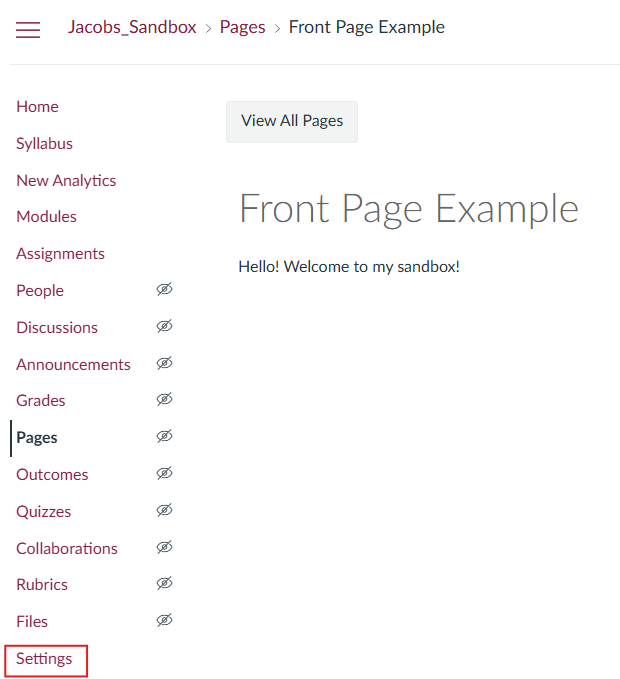
To activate the Zoom LTI in your course, first open your course and select the “Settings” option on the course Nav Bar:
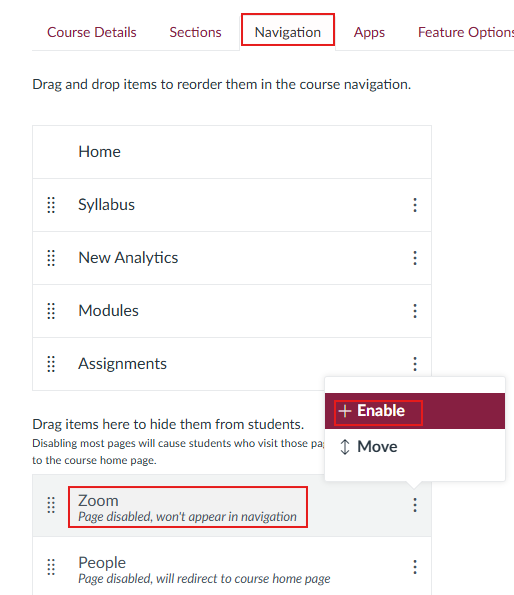
Then, select “Navigation”. You will find the Zoom course item below the “hide them from students line” (likely at the very bottom of of the page)
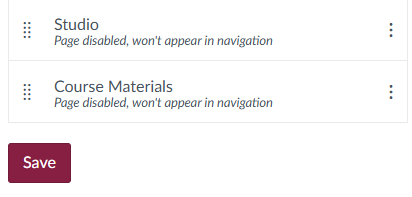
Click Save
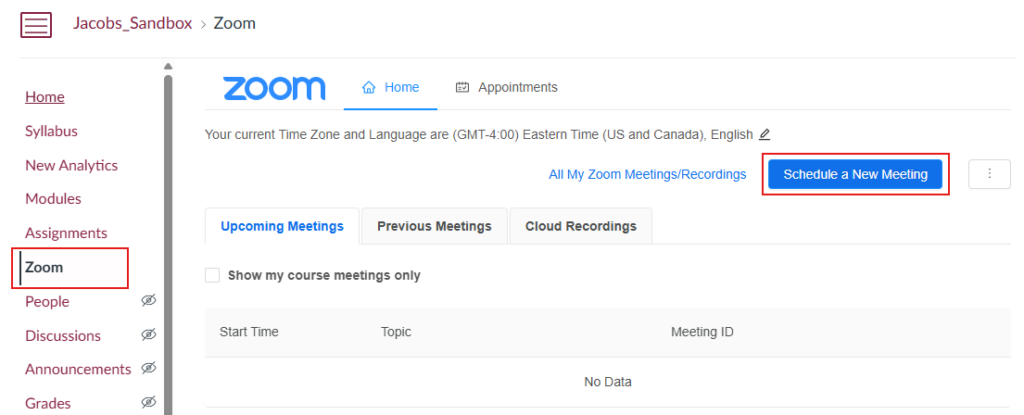
Once you have enabled the LTI you can schedule meetings by first clicking the “Zoom” item on the course nav bar and then selecting “Schedule a New Meeting”.
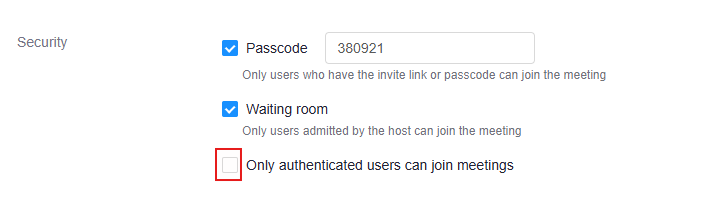
Here you will be prompted to input any and all information needed for your meeting. Fill in the information as required. We recommend having “Only authenticated users can join meetings” left unchecked.
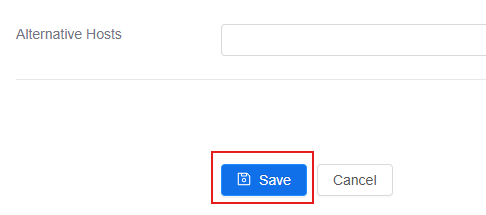
Once you are finished. Click “Save” at the bottom of the page
Note: If you receive the following notification, you will need to reach out to julie.curry@eku.edu to upgrade your Zoom license.
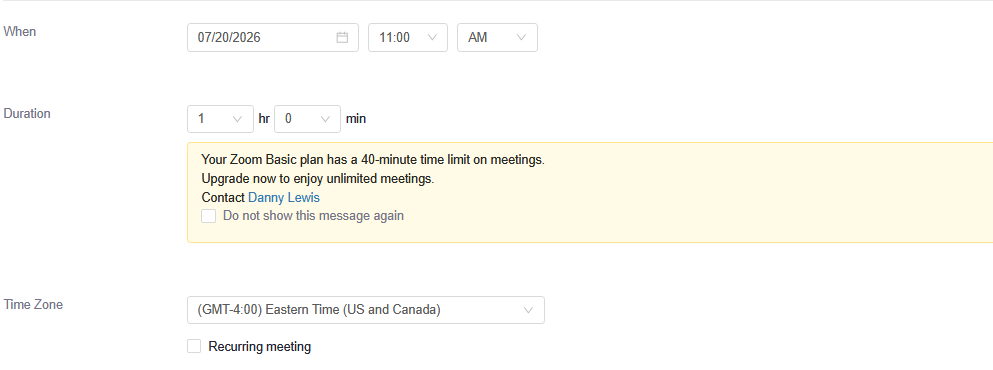
We recommend that you set up a recurring meeting so you do not have to reconfigure this every week. To do so, check the “Recurring meeting” box under the Time Zone:
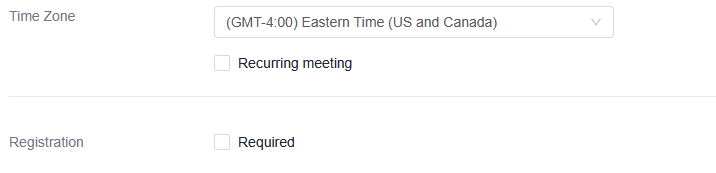
This will expand the space to allow you to set the dates and frequency the meeting will recur:
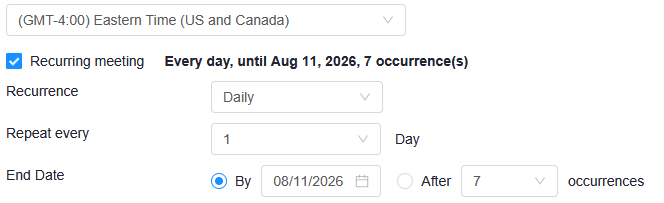
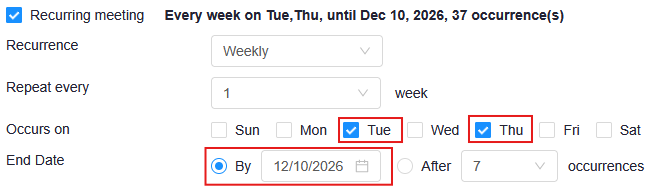
You can then set the first box to ‘Daily’ to weekly and specify which days your class will occur. You can also set when the course will stop recurring by its end date or by an amount of occurrences. The following image for example assumes the class is taught on Tues.
You will then be directed to the meeting page where you can review any needed information or add it to your calendar.
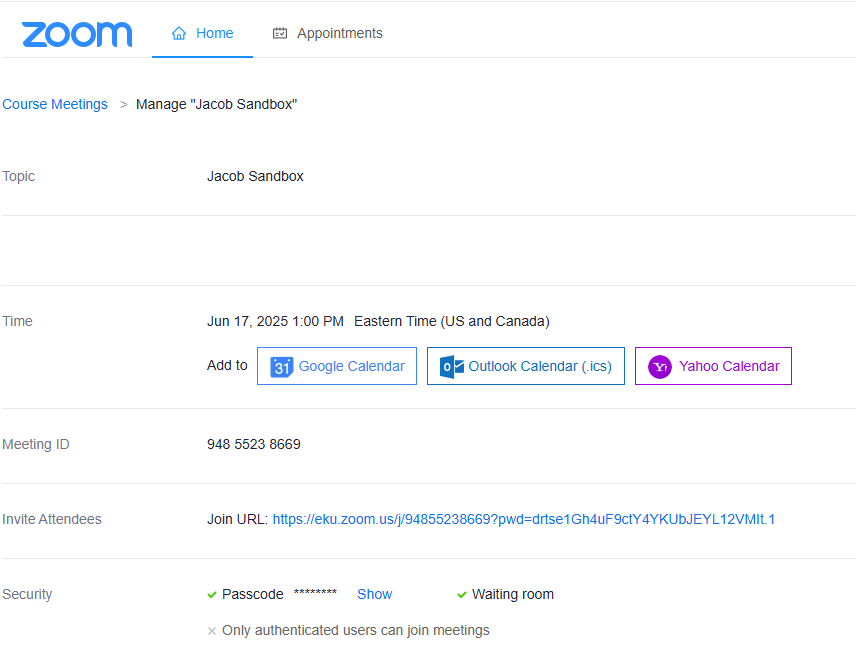
To return to the Zoom main page, simply click Home at the top left:


From the main Zoom page, you should see any meetings you have scheduled. To begin a meeting, simply click the “Start” button on the right side of the meeting you’d like to begin:
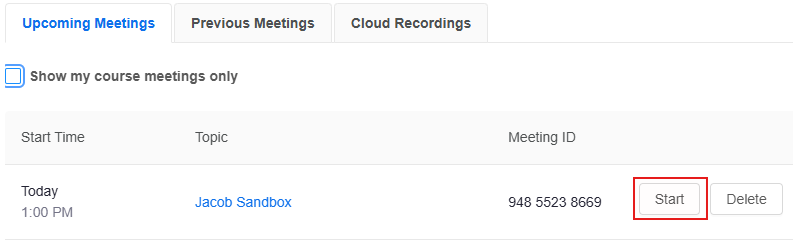
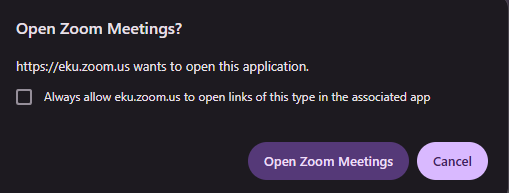
You should then be prompted to Open Zoom Meetings
Note: You may receive this error on launching or connecting to a meeting:

This just means the automatic redirection did not work. Simply click the “click here” button
If you do not wish to use the Zoom Desktop app
Click the “Cancel” button on the dialogue box

Click the small “Join from your browser” box

If you proceed with the Zoom Desktop app. Select the “Open Zoom Meetings” button to automatically start the meeting in the Zoom Desktop App.

Zoom LTI not appearing in Navigation
If you do not see the option to enable Zoom in your course navigation bar, please submit a ticket here: https://form.asana.com/?k=nie2ebJmvfm3f7r9z-6xyA&d=978674317228910. Make sure to specify the course (including the shell URL). If you do not receive a response within two business hours, please reach out to jacob.williams@eku.edu